在 Excel(2025 版)中將金額轉大寫轉換為印度盧比及其他貨幣
以下是將數字轉換為印度盧比(或其他任何貨幣)文字的方法。
處理發票、報價單、稅務表格、支票或付款憑證等財務文件時,通常需同時以數字與文字形式標示金額。這不僅展現專業度,更能有效防止詐欺或誤解。
範例
雖然 Microsoft Excel 未內建將金額轉換為大寫文字的功能,但您可透過 VBA、LAMBDA 函數,或功能強大的 Kutools for Excel 增益集,輕鬆實現此需求。
使用 VBA 將金額轉大寫轉換為印度盧比(適用所有 Microsoft 版本)
使用 LAMBDA 函數將金額轉大寫轉換為印度盧比(僅限 Microsoft 365)
將數字轉換為 USD、EUR 及 30+ 其他貨幣(適用所有 Microsoft 版本)
使用 VBA 將金額轉大寫轉換為印度盧比(適用所有 Microsoft 版本)
無論您使用哪個版本的 Excel,VBA(Visual Basic for Applications)都能提供一種高度自訂的方式,將數值金額依印度數字系統(例如千、拉克、克羅爾)轉換為文字。
步驟 1. 按下 Alt+F11,立即開啟 VBA 編輯器(Microsoft Visual Basic for Applications 視窗)!
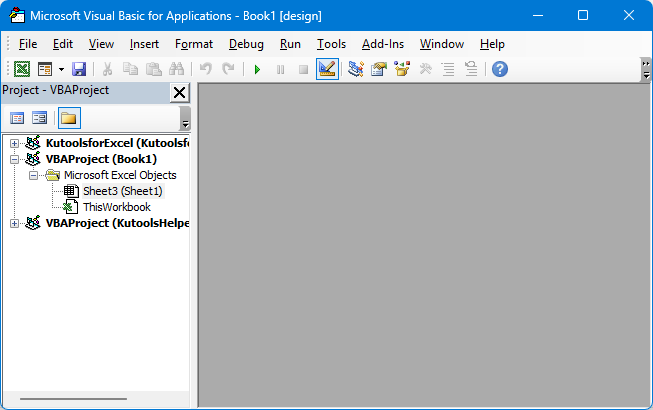
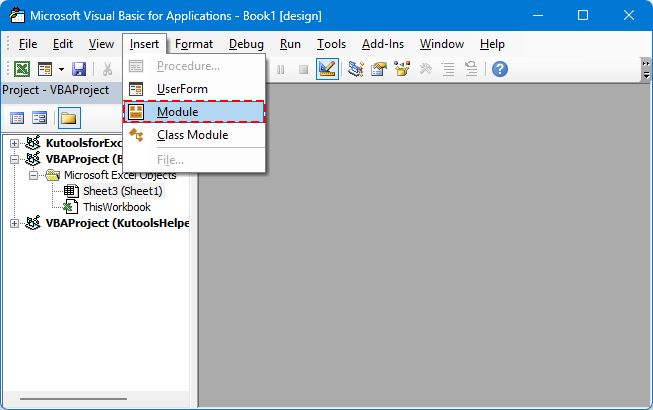
步驟 2. 前往插入> 模組。
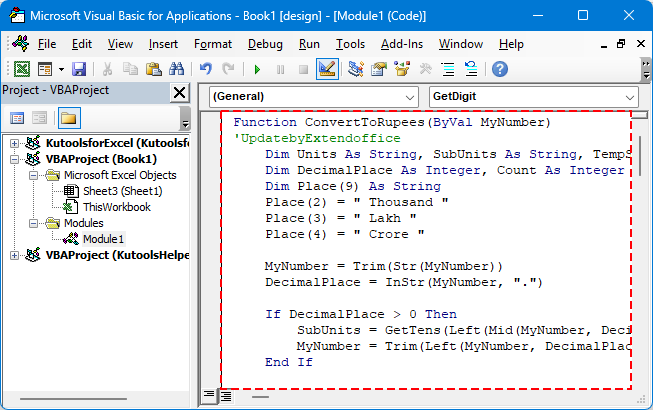
步驟 3. 將 VBA 程式碼貼上至模組中。
將數字轉換為印度盧比文字
Function ConvertToRupees(ByVal MyNumber)
'UpdatebyExtendoffice
    Dim Units As String, SubUnits As String, TempStr As String
    Dim DecimalPlace As Integer, Count As Integer
    Dim Place(9) As String
    Place(2) = " Thousand "
    Place(3) = " Lakh "
    Place(4) = " Crore "

    MyNumber = Trim(Str(MyNumber))
    DecimalPlace = InStr(MyNumber, ".")

    If DecimalPlace > 0 Then
        SubUnits = GetTens(Left(Mid(MyNumber, DecimalPlace + 1) & "00", 2))
        MyNumber = Trim(Left(MyNumber, DecimalPlace - 1))
    End If

    Count = 1
    Do While MyNumber <> ""
        TempStr = GetHundreds(Right(MyNumber, 3))
        If TempStr <> "" Then Units = TempStr & Place(Count) & Units
        If Len(MyNumber) > 3 Then
            MyNumber = Left(MyNumber, Len(MyNumber) - 3)
        Else
            MyNumber = ""
        End If
        Count = Count + 1
    Loop

    ConvertToRupees = "Rupees " & Application.WorksheetFunction.Trim(Units)
    If SubUnits <> "" Then
        ConvertToRupees = ConvertToRupees & " and " & SubUnits & " Paise"
    End If
    ConvertToRupees = ConvertToRupees & " Only"
End Function

Private Function GetHundreds(ByVal MyNumber)
    Dim Result As String
    If Val(MyNumber) = 0 Then Exit Function
    MyNumber = Right("000" & MyNumber, 3)

    If Mid(MyNumber, 1, 1) <> "0" Then
        Result = GetDigit(Mid(MyNumber, 1, 1)) & " Hundred "
    End If

    If Mid(MyNumber, 2, 1) <> "0" Then
        Result = Result & GetTens(Mid(MyNumber, 2))
    Else
        Result = Result & GetDigit(Mid(MyNumber, 3))
    End If
    GetHundreds = Result
End Function

Private Function GetTens(TensText)
    Dim Result As String
    If Val(Left(TensText, 1)) = 1 Then
        Select Case Val(TensText)
            Case 10: Result = "Ten"
            Case 11: Result = "Eleven"
            Case 12: Result = "Twelve"
            Case 13: Result = "Thirteen"
            Case 14: Result = "Fourteen"
            Case 15: Result = "Fifteen"
            Case 16: Result = "Sixteen"
            Case 17: Result = "Seventeen"
            Case 18: Result = "Eighteen"
            Case 19: Result = "Nineteen"
        End Select
    Else
        Select Case Val(Left(TensText, 1))
            Case 2: Result = "Twenty "
            Case 3: Result = "Thirty "
            Case 4: Result = "Forty "
            Case 5: Result = "Fifty "
            Case 6: Result = "Sixty "
            Case 7: Result = "Seventy "
            Case 8: Result = "Eighty "
            Case 9: Result = "Ninety "
        End Select
        Result = Result & GetDigit(Right(TensText, 1))
    End If
    GetTens = Result
End Function

Private Function GetDigit(Digit)
    Select Case Val(Digit)
        Case 1: GetDigit = "One"
        Case 2: GetDigit = "Two"
        Case 3: GetDigit = "Three"
        Case 4: GetDigit = "Four"
        Case 5: GetDigit = "Five"
        Case 6: GetDigit = "Six"
        Case 7: GetDigit = "Seven"
        Case 8: GetDigit = "Eight"
        Case 9: GetDigit = "Nine"
        Case Else: GetDigit = ""
    End Select
End Function
步驟 4. 儲存後返回 Excel。
步驟 5. 選取一個儲存格,並依下列方式輸入公式:
按下 Enter 鍵

💡 提示:此方法支援小數(派士),並可離線使用。
使用 VBA 的限制
- 請將活頁簿儲存為啟用巨集的檔案(.xlsm)。
- 在某些環境中,巨集可能會因安全性設定而遭到封鎖。
將金額轉大寫轉換為其他貨幣(USD、EUR 等)
若要為其他貨幣(例如「Dollars」或「Euros」)自訂輸出,只需調整 VBA 函數中的字串值即可。以下提供一個更簡潔且彈性更高的函數版本。
彈性 VBA 程式碼範本(自訂貨幣)
'UpdatebyExtendoffice
Public Function NumberToWordsCustom(ByVal num As Double, Optional ByVal currency2 As String, Optional ByVal subCurrency As String) As String
    Dim result As String
    Dim dollars As Long
    Dim cents As Long

    dollars = Int(num)
    cents = Round((num - dollars) * 100)

    If Len(currency2) = 0 Then currency2 = "Dollars"
    If Len(subCurrency) = 0 Then subCurrency = "Cents"
    result = currency2 & " " & SpellNumber_English(dollars)

    If cents > 0 Then
        result = result & " and " & SpellNumber_English(cents) & " " & subCurrency
    End If

    NumberToWordsCustom = result & " Only"
End Function

Private Function SpellNumber_English(ByVal MyNumber As Long) As String
    Dim Units As Variant, Tens As Variant, Teens As Variant
    Dim Place() As String
    Dim TempStr As String
    Dim Count As Integer
    Dim t As String
    Dim StrNumber As String
    Dim n As Integer

    Place = Split(" Thousand Million Billion", " ")
    Units = Array("", "One", "Two", "Three", "Four", "Five", "Six", "Seven", "Eight", "Nine")
    Tens = Array("", "", "Twenty", "Thirty", "Forty", "Fifty", "Sixty", "Seventy", "Eighty", "Ninety")
    Teens = Array("Ten", "Eleven", "Twelve", "Thirteen", "Fourteen", "Fifteen", "Sixteen", "Seventeen", "Eighteen", "Nineteen")

    StrNumber = Trim(Str(MyNumber))
    Count = 0

    Do While StrNumber <> ""
        n = Val(Right(StrNumber, 3))
        If n <> 0 Then
            t = ConvertHundreds(n, Units, Tens, Teens)
            If Count > 0 Then t = t & " " & Place(Count - 1)
            TempStr = t & " " & TempStr
        End If
        If Len(StrNumber) > 3 Then
            StrNumber = Left(StrNumber, Len(StrNumber) - 3)
        Else
            StrNumber = ""
        End If
        Count = Count + 1
    Loop

    SpellNumber_English = Trim(TempStr)
End Function

Private Function ConvertHundreds(ByVal n As Integer, Units As Variant, Tens As Variant, Teens As Variant) As String
    Dim result As String
    If n >= 100 Then
        result = Units(Int(n / 100)) & " Hundred "
        n = n Mod 100
    End If
    If n >= 20 Then
        result = result & Tens(Int(n / 10)) & " "
        n = n Mod 10
    ElseIf n >= 10 Then
        result = result & Teens(n - 10) & " "
        n = 0
    End If
    If n > 0 Then
        result = result & Units(n)
    End If
    ConvertHundreds = Trim(result)
End Function
VBA 公式範例:

其他貨幣的 VBA 公式範例:
=NumberToWordsCustom(A2, "Euros", "Cents")
=NumberToWordsCustom(A2, "Pounds", "Pence")
此程式碼極具彈性—只需傳入所需貨幣及其次單位即可。
將您的活頁簿儲存為啟用巨集的檔案
若使用 VBA,務必將活頁簿儲存為「啟用巨集」的格式,否則關閉檔案時,所有程式碼都會遺失。
步驟 1. 前往檔案> 另存新檔
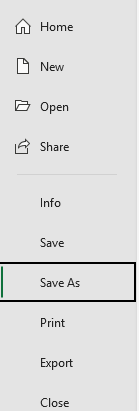
步驟 2. 選取儲存位置並選擇文件類型:Excel 啟用巨集活頁簿(*.xlsm)。
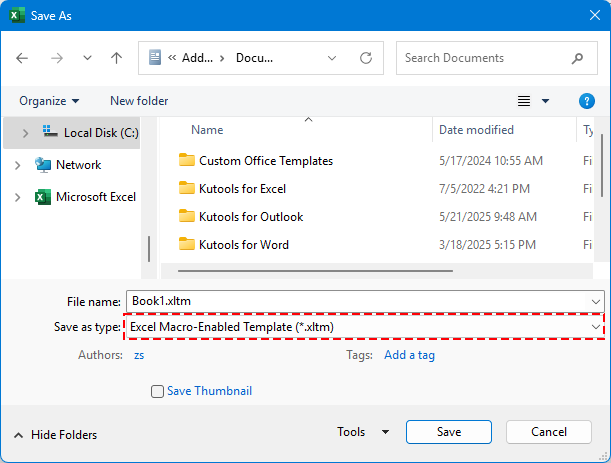
步驟 3. 點擊儲存。
✅ 您的自訂函數(例如 =ConvertToRupees(A2))現已永久儲存,隨時都能重複使用!
使用 LAMBDA 函數將金額轉大寫轉換為印度盧比(僅限 Microsoft 365)
Excel 365 使用者可善用全新 LAMBDA 功能,輕鬆自訂公式,無需依賴 VBA。
🪄 什麼是 LAMBDA?
LAMBDA 是 Excel 中的一項強大功能,讓您無需撰寫任何程式碼或使用巨集,就能透過公式建立專屬的自訂函數——就像使用 SUM 或 IF 等內建函數一樣直覺。它能有效簡化重複性的邏輯運算,讓您的試算表更簡潔、易讀且便於維護。
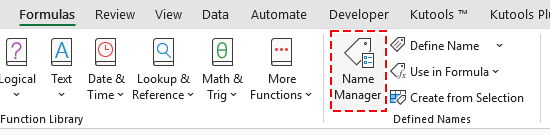
步驟 1:前往名稱管理器,並按一下公式 > 名稱管理器。
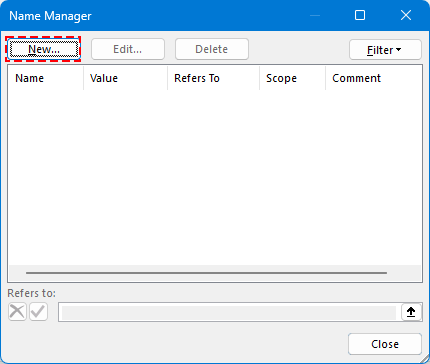
步驟 2:建立一個新的名稱。
點擊新增按鈕。
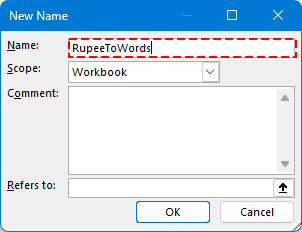
輸入名稱。
範例:RupeeToWords
步驟 3:將此 LAMBDA 公式貼到參照欄位:
=LAMBDA(n, LET( units, {““,“One“,“Two“,“Three“,“Four“,“Five“,“Six“,“Seven“,“Eight“,“Nine“}, teens, {“Ten“,“Eleven“,“Twelve“,“Thirteen“,“Fourteen“,“Fifteen“,“Sixteen“,“Seventeen“,“Eighteen“,“Nineteen“}, tens, {““,““,“Twenty“,“Thirty“,“Forty“,“Fifty“,“Sixty“,“Seventy“,“Eighty“,“Ninety“}, num, INT(n), paise, ROUND((n - INT(n)) * 100, 0), ConvertTwo, LAMBDA(【【PH_2】】, IF(【【PH_2】】0, “ “ & INDEX(units, MOD(【【PH_2】】,10)+1), ““) ) ) ),ConvertThree,LAMBDA(x,IF(x=0, ““, IF(【【PH_2】】0, “ “ & ConvertTwo(MOD(【【PH_2】】,100)), ““) ) ) ),words,IF(num=0, "Zero“, TEXTJOIN(“ “, TRUE, IF(INT(num/10000000)>0, ConvertTwo(INT(num/10000000)) & “ Crore“, ““), IF(MOD(INT(num/100000),100)>0, ConvertTwo(INT(MOD(num,10000000)/100000)) & “ Lakh“, ““), IF(MOD(INT(num/1000),100)>0, ConvertTwo(INT(MOD(num,100000)/1000)) & “ Thousand“, ““), IF(MOD(INT(num/100),10)>0, INDEX(units, INT(MOD(num,1000)/100)+1) & “ Hundred“, ““), IF(MOD(num,100)>0, ConvertTwo(MOD(num,100)), ““) ) ),result,“Rupees “ & words & IF(paise>0, “ and “ & ConvertTwo(paise) & “ Paise“, ““) & “ Only“, result ))按一下確定,即可儲存新建立的名稱。
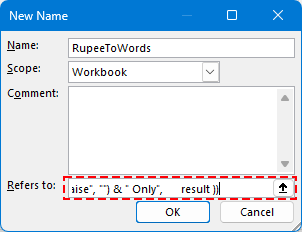
步驟 3. 關閉名稱管理器,返回 Excel。
步驟 4. 在任意儲存格中輸入下列公式:
按下 Enter 鍵。

👀 完整的 LAMBDA 函數程式碼,可輕鬆處理克羅爾、拉克、千位與小數格式。
將數字轉換為 USD、EUR 及 30+ 其他貨幣(適用所有 Microsoft 版本)
若要獲得最高效且專業的解決方案,請立即使用 Kutools for Excel 的金額轉大寫功能!此強大工具支援:
🌍 超過 30 種貨幣,包括:
- 美元(USD)
- 歐元(EUR)
- 人民幣(CNY)
- 英鎊(GBP)
- 等。
步驟 1. 選取您要轉換的儲存格。
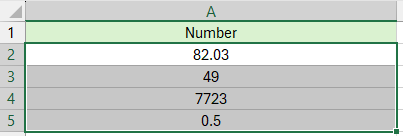
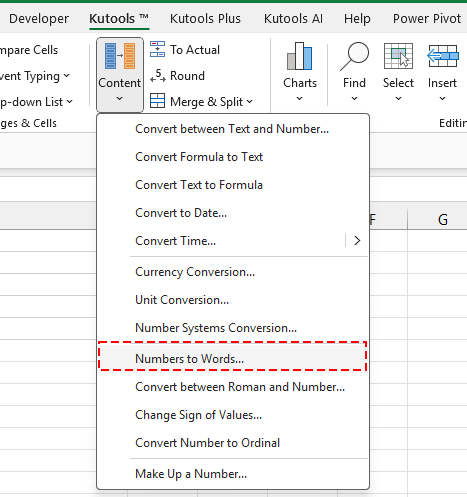
步驟 2. 前往 Kutools > 內容 > 金額轉大寫
步驟 3. 選擇您要轉換的目標貨幣,然後按一下「確定」。
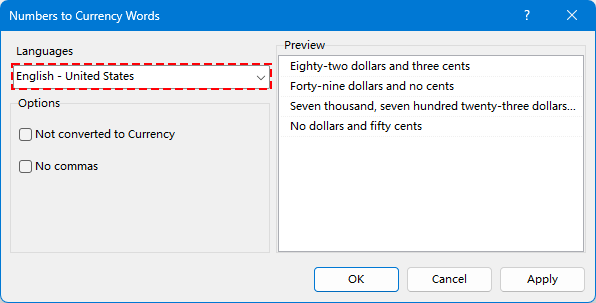
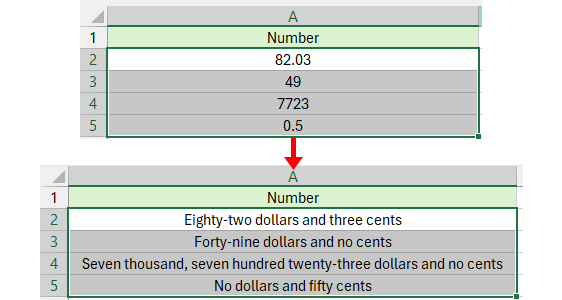
數字已成功轉換為指定貨幣。
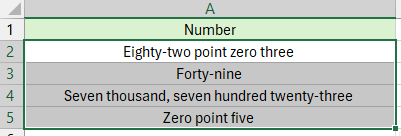
😁 提示:若想直接轉換金額轉大寫,請勾選不轉換為貨幣選項,結果將顯示如下:
各方法適用時機
若您需要彈性高且可程式化的解決方案,並熟悉巨集,請使用 VBA。
- 若您使用 Excel 365,且僅偶爾需要轉換印度盧比數值,建議使用 LAMBDA 函數。這是一種輕量級、可分享的解決方案,無需巨集或外部工具,非常適合處理簡單或個人任務。
- 若您追求最簡單、快速且多功能的解決方案——無需撰寫任何程式碼,Kutools for Excel 就是您的首選。它特別適用於以下情境:
- 您需要處理多種貨幣。
- 需要對批量或大規模資料集中的數值進行轉換。
- 想要一款無需巨集、開箱即用的專業工具,內建 30 多種貨幣選項,並搭載 AI 驅動的卓越效能。
最佳 Office 生產力工具
| 🤖 | KUTOOLS AI 助手:基於以下內容徹底革新數據分析:智慧執行 | 產生程式碼| 建立自訂公式 | 分析資料並產生圖表| 呼叫增強函數…… |
| 熱門功能:尋找、醒目提示或標記重複值 | 刪除空白行 | 合併列或儲存格而不遺失資料 | 不使用公式的四捨五入…… | |
| 高級 LOOKUP:多重條件 VLookup | 多重數值 VLookup | 跨多個工作表 VLookup | 模糊查找…… | |
| 高級下拉列表:快速建立下拉式清單 | 相依式下拉式清單 | 多選下拉式清單…… | |
| 欄位管理員:新增指定數量的欄位|移動欄位|切換隱藏欄位的可見狀態|比較範圍與欄位…… | |
| 精選功能:網格聚焦 | 設計視圖 |增強編輯欄 | 工作簿與工作表管理員 | 資源庫(自動文字)| 日期提取 | 合併工作表 | 加密/解密儲存格 | 依清單傳送電子郵件 | 超級篩選 | 特殊篩選(篩選粗體儲存格/斜體/刪除線……) ...... | |
| 頂尖 15 工具組:12 文字工具(添加文本,刪除特定字符,……)| 50+ 圖表 類型(甘特圖,……)| 40+ 實用公式(基於生日計算年齡,……)| 19 插入工具(插入二維碼,從路徑插入圖片,……)| 12 轉換工具(金額轉大寫,匯率轉換,……)| 7 合併和拆分工具(高級合併行,分割儲存格,……)|……以及更多 |
運用 Kutools for Excel 強化您的 Excel 技能,體驗前所未有的高效能!Kutools for Excel 提供超過 300 項進階功能,大幅提升生產力並節省寶貴時間。立即點擊,取得您最需要的功能……
Office Tab 為 Office 帶來分頁式介面,讓您的工作更輕鬆自在!
- 在 Word、Excel、PowerPoint 中啟用分頁式編輯與閱讀功能,以及 Access、Visio 與 Project。
- 在同視窗的新分頁中開啟並建立多份文件,而非另開新視窗。
- 每天為您提升 50% 的工作效率,並省下數百次滑鼠點擊!
所有 Kutools 增益集,一個安裝程式
Kutools for Office 套件整合了 Excel、Word、Outlook 與 PowerPoint 的增益集,以及 Office Tab Pro,非常適合需要跨多個 Office 應用程式協作的團隊使用!





- 全能套件— 包含 Excel、Word、Outlook 與 PowerPoint 增益集,以及 Office Tab Pro
- 一個安裝程式,一個授權— 數分鐘內即可完成設定(支援 MSI)
- 協同運作更出色— 在多個 Office 應用程式間實現流暢的生產力體驗
- 30 天完整功能試用— 無需註冊,無需信用卡
- 超值之選— 比單獨購買各增益集更省費用